
If you are still clicking into individual cells to fix typos or delete spaces, stop. You are working like a typewriter in a world of jet engines..
The secret to being a high-paid Data Analyst isn’t working harder; it’s knowing how to make the software work for you. Today, we’re going to learn the “Magic Five”—the formulas that turn a chaotic, “dirty” spreadsheet into a professional dataset in seconds.
The “Saturday Afternoon” Nightmare
Imagine your boss hands you a list of 5,000 customer names. Some are lowercase, some have weird spaces, and some have “First Name” and “Last Name” mashed into one cell.
If you fix them one by one, you’ll be there until next Saturday. Most beginners think this “grunt work” is just part of the job. It’s not. It’s a sign you haven’t met the “Janitor Formulas” yet.
Work in Bulk
In data analytics, we never fix one thing. We fix everything. By using formulas, you create a “rule.” You tell Excel: “I don’t care if there are 10 rows or 10 million rows; follow this rule for all of them.” This shifts you from being a “Data Entry Clerk” to a “Data Architect.”
The “Magic Five” Formulas
Let’s break down the only five formulas you need to start cleaning like a pro.
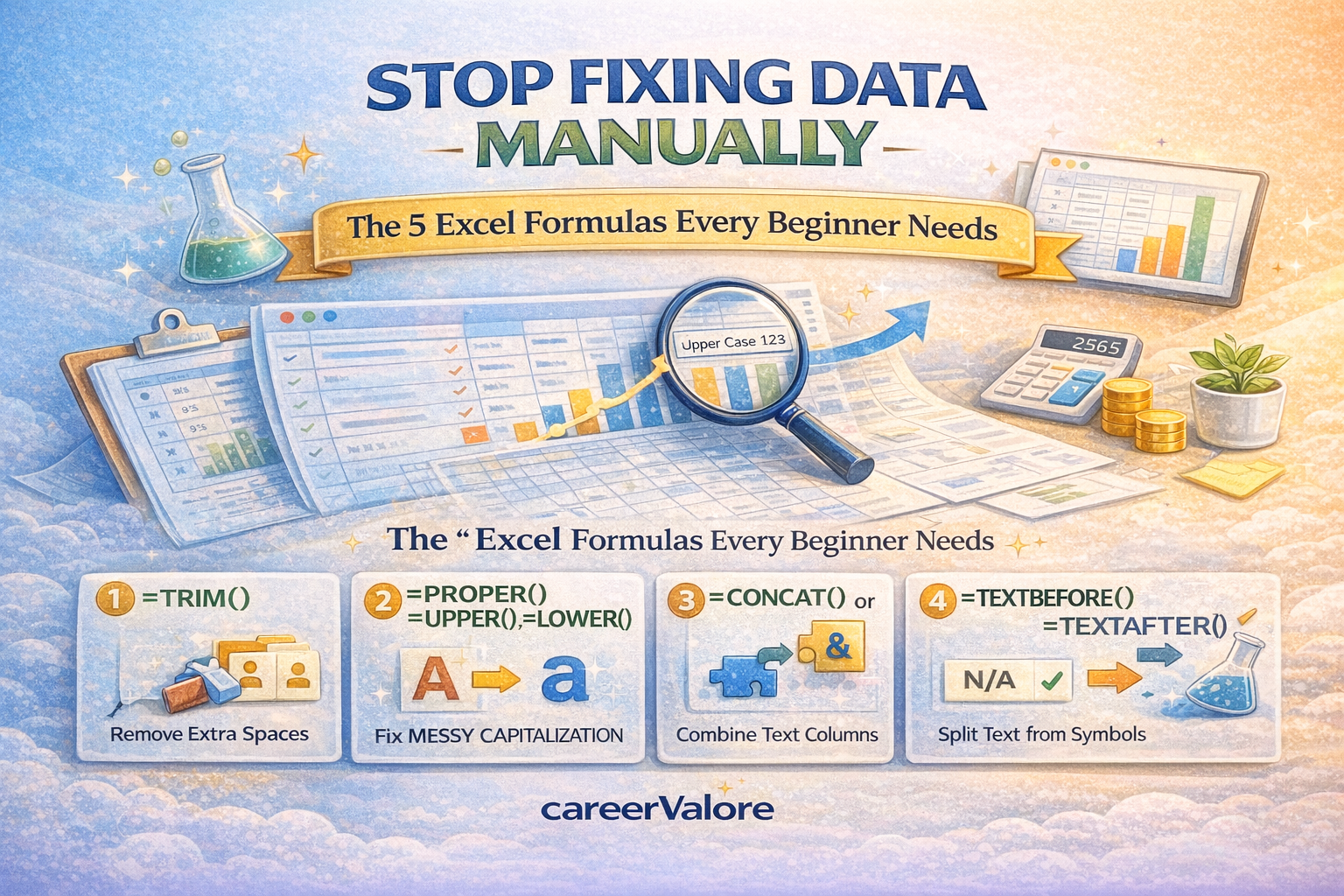
1. =TRIM()
The Problem: Invisible spaces at the beginning or end of a word (e.g., " Apple" or "Apple "). These are the #1 cause of errors in data.
The Fix: =TRIM(A2)
What it does: It snips off any extra spaces but keeps the single spaces between words. It’s like a digital haircut.
2. =PROPER() / =UPPER() / =LOWER()
The Problem: Messy capitalization (e.g., "jOhN dOE", "apple", "ORANGE").
The Fix: =PROPER(A2)
What it does: It makes the first letter of every word capital and the rest lowercase. Instantly makes names look professional.
3. =CONCAT() or &
The Problem: Data is split up when it should be together (e.g., First Name in Column A, Last Name in Column B).
The Fix: =A2 & " " & B2
What it does: It “glues” cells together. The " " in the middle adds the space between the names.
4. =TEXTBEFORE() or =TEXTAFTER()
The Problem: You have an email address like sarah@gmail.com and you only want the username (sarah).
The Fix: =TEXTBEFORE(A2, "@")
What it does: It searches for a symbol (like the @ or a comma) and grabs everything before it.
5. =IFERROR()
The Problem: Your spreadsheet is full of ugly error codes like #VALUE! or #DIV/0!. It looks unprofessional and breaks your charts.
The Fix: =IFERROR(Your_Formula, "Check This")
What it does: It hides the error message and replaces it with whatever text you choose (or a 0). It’s the “makeup” of the data world.
Why These Formulas Are Gold for Your Career
When you put “Data Cleaning” or “Excel Automation” on your resume, these are the skills recruiters are actually looking for. They want to know you can take a raw CSV file and turn it into a clean table without breaking a sweat.
Your 5-Minute Mission
Let’s build your first “Cleaning Machine.”
- Open a blank Excel or Google Sheet.
- In cell A1, type your name in all lowercase with 3 spaces before it (e.g.,
" your name"). - In cell B1, type this formula:
=PROPER(TRIM(A1)) - Watch the magic happen. You just nested two formulas! You told the computer to first “Trim” the spaces, then “Capitalize” the name. This is exactly how the pros do it.
Leave a Reply