
Introduction
So far, you have mainly worked with:
Excel files
Combined_Sales table
Calendar table
But in real business environments, data also comes from:
Websites
Online services
Public APIs
Cloud systems
This is where APIs and Web Connectors become important.
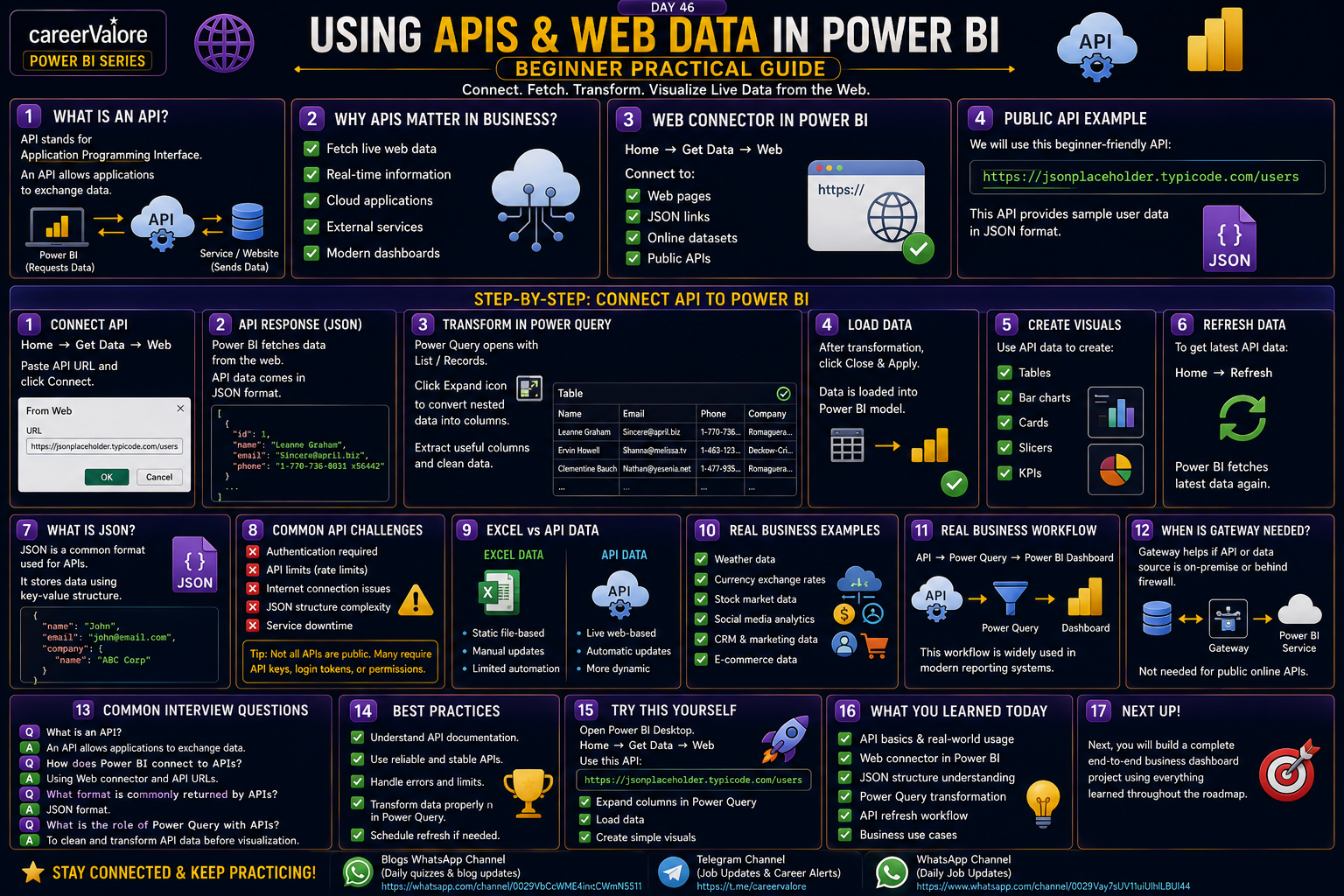
In Day 46, you will learn how Power BI connects to web data and APIs using beginner-friendly practical examples.
You will also understand how JSON data works inside Power BI.
What You Will Learn Today
You will understand APIs in simple terms
You will learn how Power BI fetches web data
You will connect a public API to Power BI
You will understand JSON structure
You will transform API data using Power Query
Why This Skill Matters for Your Career
Modern dashboards often use:
Live web data
Cloud applications
Online services
External APIs
Examples:
Weather data
Currency rates
Stock market data
Social media analytics
Business applications
Understanding APIs makes you more industry-ready.
What is an API?
API stands for:
Application Programming Interface
Simple meaning:
An API allows applications to exchange data.
Example:
Power BI requests data from a website or service.
The service sends data back.
Real Example
Suppose weather website provides:
Temperature
Humidity
Forecast
Power BI can fetch this data using API connection.
Understanding Web Connector
In Power BI Desktop:
Home → Get Data → Web
This allows Power BI to connect to:
Web pages
JSON links
Online datasets
APIs
Step 1: Use a Public API
We will use a beginner-friendly public API.
Example URL:
https://jsonplaceholder.typicode.com/users
This API provides sample user data.
Step 2: Connect API to Power BI
In Power BI:
Home → Get Data → Web
Paste API URL.
Then click:
Connect
What Happens Next
Power BI fetches data from web source.
Usually API data comes in:
JSON format.
What is JSON?
JSON is a common format used for APIs.
It stores data using:
Key-value structure.
Example:
{ "name": "John", "email": "john@email.com"}
Important Understanding
Power BI automatically reads JSON structure.
Step 3: Transform API Data in Power Query
After loading API:
Power Query opens.
You may see:
Lists
Records
Nested columns
Click:
Expand icon
to convert nested data into proper columns.
Example Columns You May Extract
Name
Email
Company
Phone
Website
Now API data becomes usable table format.
Step 4: Load Data into Power BI
After transformation:
Click:
Close & Apply
Now data loads into Power BI model.
Step 5: Create Visuals
You can now create:
Tables
Bar charts
Cards
Slicers
using API data.
Real Business Example
Companies use APIs to fetch:
CRM data
Marketing data
Financial data
Cloud application data
Power BI visualizes this information.
Step 6: Understanding Refresh
API data can also refresh.
Example:
Home → Refresh
Power BI fetches latest API data again.
This is similar to Excel refresh.
Step 7: Common API Challenges
Very common real-world topic.
Possible issues:
Authentication required
API limits
Internet connection issues
JSON structure complexity
Important Beginner Understanding
Not all APIs are public.
Many business APIs require:
API keys
Login tokens
Permissions
But learning public APIs first is the best starting point.
Step 8: Difference Between Excel and API Data
Excel:
Static file-based data
API:
Live web-based data
APIs are often more dynamic.
Step 9: Real Business Workflow
Typical workflow:
API → Power Query → Power BI Dashboard
This is heavily used in modern reporting systems.
Step 10: Beginner Practical Understanding
At your current stage, focus on:
Understanding APIs
Connecting web data
Expanding JSON
Loading API data into visuals
This is enough for beginner interview discussions.
Common Interview Questions
Question:
What is an API?
Answer:
“An API allows applications to exchange data.”
Question:
How does Power BI connect to APIs?
Answer:
“Using Web connector and API URLs.”
Question:
What format is commonly returned by APIs?
Answer:
“JSON format.”
Question:
What is the role of Power Query with APIs?
Answer:
“To clean and transform API data before visualization.”
What You Learned Today
You learned:
API basics
Web connector usage
JSON understanding
Power Query transformation
API refresh workflow
Real business API usage
These are important modern Power BI concepts.
Try This Yourself
Open Power BI Desktop.
Go to:
Home → Get Data → Web
Use this API:
https://jsonplaceholder.typicode.com/users
Then:
Expand columns
Load data
Create simple visuals
This gives you real practical API experience.
What Comes Next
Next, you will build a complete end-to-end business dashboard project using everything learned throughout the roadmap.
Stay Connected and Keep Practicing
Blogs WhatsApp Channel (for daily quizzes and blog updates):
https://whatsapp.com/channel/0029VbCcWME4inotCWmN5511
Telegram Channel (Job Updates & Career Alerts):
https://t.me/careervalore
WhatsApp Channel (Daily Job Updates):
https://www.whatsapp.com/channel/0029Vay7sUV11ulUIhLBUI44
Conclusion
Today you learned how Power BI connects to APIs and web data sources.
This is an important real-world skill because modern dashboards often depend on external and cloud-based data systems.
Leave a Reply